

Picture this. You’re late, keys in one hand, coffee in the other, and your pocket feels suspiciously light. Your iPhone is gone.
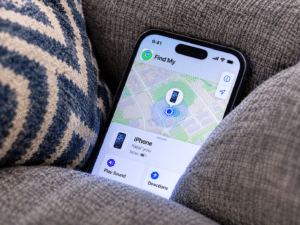
Here’s the good news: if you set up Find My iPhone ahead of time, this is a five-minute problem instead of a five-day one. Here are the ten things I think every iPhone owner should know.
1. Turn It On Today, Not After the Panic
Find My iPhone is part of Apple’s Find My service. It lets you locate a missing iPhone on a map, play a sound, lock it, show a message on the screen, or erase it remotely. All of that only works if it was switched on before the phone vanished.
How to turn on Find My iPhone:
- Open Settings.
- Tap your name at the top.
- Tap Find My, then Find My iPhone.
- Switch it on.
While you’re there, turn on Find My network and Send Last Location. You’ll see why in sections 4 and 6.
2. Find It from Another Device
Your iPhone is gone, so how do you use the Find My app? Easy. Use another device.
- Another Apple device: Open the Find My app on an iPad or Mac signed into the same Apple Account. Tap your iPhone under Devices.
- Any browser (including Windows PC or Android): Go to icloud.com/find, do the Find My iPhone login with your Apple Account, and pick your phone from the list.
Yes, a friend’s laptop or an Android phone works fine. You only need your Apple Account details.
3. Make It Scream (Politely)
If you think the phone is nearby, select it in Find My and tap Play Sound. It’s perfect for phones lost under furniture, in another room, or in that one jacket you swore you checked.
I’ll admit, nothing feels quite as humbling as following your own ringtone into the laundry pile. Still beats buying a new phone.
4. Offline Doesn’t Mean Gone
A dead zone or a switched-off phone doesn’t always end the search. If Find My network is on, nearby Apple devices can securely relay your iPhone’s location to iCloud, so you may still see its last known or detected location.
Here’s how the main situations compare:
| Situation | Can you still find it? |
|---|---|
| Phone is online | Yes, live location |
| No Wi-Fi or cell service, Find My network on | Possibly, if nearby Apple devices detect it |
| No connectivity and no nearby Find My devices | No live location, only last known |
| Powered off (supported iPhones) | Up to 24 hours after shutdown |
| Power-reserve mode (supported iPhones) | Up to 5 hours |
So if your phone is off, move fast. That window is real.
5. Lost Mode: Your Best Move
If you can’t find it right away, mark iPhone as lost. In Find My, select the device and turn on Lost Mode. Here’s what it does:
- Locks the iPhone with a passcode.
- Shows your custom message and contact number on the lock screen.
- Can help track the phone’s movement.
- Suspends Apple Pay cards where supported.
Keep your message short and friendly. Something like “Lost my phone, please call me” works better than a threat.
6. Last Known Location and a Dead Battery
What about a Find My iPhone battery dead situation? If you turned on Send Last Location, your iPhone can send its location to Apple when the battery gets critically low. That gives you a last known location even if the phone dies.
One honest note: Find My shows where your phone is or was last seen. It’s not a diary of everywhere it’s been, so don’t expect a full location history trail.
7. Erase It and Activation Lock
If recovery looks unlikely, use Erase This Device in Find My to wipe your personal data remotely. It’s the digital version of locking the front door behind you.
Then there’s Activation Lock. It’s tied to Find My iPhone and stops someone else from using or erasing your phone and activating it with a different Apple Account. A thief gets a very expensive paperweight.
Heads up: erasing is a big step, so only do it when you’re ready to let go of the phone.
8. If It’s Stolen, Don’t Play Hero
This is where I get serious. If you think your phone was stolen:
- Use Find My to mark it as lost and lock it.
- Report the theft to local police if appropriate.
- Contact your carrier if needed.
- Do not go after it alone or meet a thief in person.
Your phone is replaceable. You aren’t. Let the professionals handle recovery and keep the evidence handy.
9. When Find My iPhone Isn’t Working
Quick checklist if Find My iPhone is not working:
- Was it turned on before the phone went missing? (It has to be.)
- Are you signed in with the same Apple Account?
- Does the phone have connectivity, or any nearby Find My devices to relay its location?
- Did you try the browser route at icloud.com/find?
A few other quick answers:
- Find My iPhone without Apple ID? Not really. You need the Apple Account linked to the phone, though you can sign in on any device.
- Finding someone else’s iPhone? Only if they’ve shared their location with you, or you’re signed in to their account with permission. A phone number alone won’t do it.
- Battery drain? Normal use has minimal impact, and the theft protection is worth it.
- Find My iPhone vs Google Find Hub? They’re the same idea for different ecosystems: Apple’s tool covers your Apple gear, and Google’s covers Android.
10. Gear That Makes Finding Things Easier
Find My doesn’t stop at your phone. It also supports iPads, Macs, Apple Watches, AirPods, Beats headphones, AirTags, and compatible third-party accessories. Here’s my short list of useful extras:
| Goal | What to grab |
|---|---|
| Everyday starter | Apple AirTag ($29) plus a FineWoven Key Ring, mophie Loop Case, or Incase Woolenex Key Clip |
| Travel | AirTag 4 Pack ($99), Belkin Secure Holder with Strap, and an AirTag-compatible luggage tag |
| Pets and bags | An AirTag-compatible pet collar holder |
| Power backup | Belkin BoostCharge magnetic power bank or UltraCharge Pro 20K, Apple MagSafe Charger, 20W USB-C adapter, USB-C cable |
| Extra tracking | Apple Watch or AirPods Pro (both show up in Find My) |
An AirTag attaches to everyday items and shows up in the Find My app on your iPhone or Apple Watch. Apple also offers free engraving on AirTags, which is a nice touch.
My honest advice: start with one AirTag in a secure holder and a decent power bank. You can add more later.
Quick FAQ
What is Find My iPhone?
Apple’s tool for locating, locking, or erasing a missing iPhone.
Can I find my iPhone if it’s offline?
Yes, if Find My network is on and nearby Apple devices detect it.
Can I use it on Windows or Android?
Yes. Go to icloud.com/find and sign in.
Can I locate AirPods, Apple Watch, or Mac too?
Yes, along with iPads, Beats headphones, and AirTags.
Final Thoughts
Find My iPhone is one of those features you ignore for years, then thank at the exact moment you need it. Spend two minutes today checking your settings, and your future self will be a lot calmer.
Your move: Open Settings right now, confirm Find My iPhone, Find My network, and Send Last Location are all on, then tell a friend or family member to do the same. And if you’ve got a “my phone was in the freezer the whole time” story, I’d love to hear it in the comments.